Showing posts with label safety on the Internet. Show all posts

Monday, April 20, 2020

SEMANA 5 - Task 10 - Tests

ACTIVITIES:
Let´s see how you manage / A ver cómo os apañáis
Nota 1: No hagáis los tests si os quedan aún tareas por hacer atrasadas. Hasta ahora, hemos hecho 9 tareas. Es importante que reviséis los contenidos, no vale solo hacer las tareas. Cuando las hayáis hecho todas, ¡adelante! 
Nota 2: A cada uno os saldrá un test diferente. Tengo una gran base de datos, y el programa Quizlet elige 15 preguntas aleatoriamente. Incluso si repetís el test, os saldrá uno diferente.

TEST 1
Os dejo un vídeo explicando cómo hacer el test y cómo guardar la captura de pantalla, imprimir resultado o hacer una foto. Es muy importante que veáis este vídeo:


¿Ya está claro todo?
Para hacer el primer test pulsa en el enlace correspondiente a programa o sección.
TEST 1 programa: Test verdadero o falso en español - 1º A y B

TEST 1 sección: Test true or false in English - 1º C, D, E y F


TEST 2
Os dejo un vídeo de nuevo. Es muy importante que lo veáis. Ahora las preguntas son de más tipos: verdadero o falso, combinación y opciones. La cosa se complica un poquito más. Además, podéis encontraros con alguna cosilla nueva que podréis buscar en otra pestaña, si no la sabéis.


¿Ya está claro todo?
Para hacer el primer test pulsa en el enlace correspondiente a programa o sección.
TEST 2 programa: Test (variado) Seguridad en internet en español - 1º A y B

TEST 2 sección: Test (multiple) Safety on the Internet - 1º C, D, E y F


En los dos casos, test 1 y test 2:
Abre el enlace del tablero en otra ventana mejor pulsando en el vínculo anterior. Lo verás más grande y tendrás menos problemas para subir tu fichero pdf, imagen o captura de pantalla.

Hecho con Padlet

DEADLINE / PLAZO

April 27th

SEMANA 5 - Task 9 - Summary

ACTIVITY

Watch this video and answer the questions. / Ved este vídeo y responded a las preguntas.
El vídeo está en inglés, pero seguro que podéis seguir la historia.

Please, send a comment about what you think about the video. Has it been easy to answer?

Es autoevaluable, no me tenéis que decir los resultados.
Por favor, haced un comentario en este artículo con lo que os ha parecido el vídeo/preguntas. ¿Ha sido fácil?

With questions in English:

Con preguntas en español:


Summary / Resumen

Tuesday, April 14, 2020

SEMANA 4 - Task 8 - Sexting y Grooming

CONTENT


SEXTING
El sexting consiste en la difusión o publicación de imágenes o vídeos de tipo sexual, producidos por el propio remitente, principalmente a través del teléfono móvil o por otros dispositivos tecnológicos (tabletas, portátiles, etc.). Ten en cuenta que las imágenes o vídeos son realizados por el mismo remitente de forma voluntaria, o bien son realizados por otra persona, pero con su consentimiento para ello, al menos al principio. Afecta tanto a menores como a adultos.


GROOMING
El grooming, es un tipo de ciberacoso ejercido deliberadamente por un adulto para establecer una relación y un control emocional sobre un menor con el fin de preparar el terreno para su abuso sexual. Mediante un conjunto de técnicas de engaño y persuasión el acosador se gana la confianza de los niños y niñas con la finalidad de conseguir un beneficio sexual (grooming es una palabra inglesa que significa “engatusamiento”). Puede ser desde embaucar al menor para que se haga fotos o vídeos desnudo o con poses provocativas, hasta la corrupción, la prostitución infantil y los abusos sexuales. No siempre el objetivo del acosador es establecer un contacto sexual con los menores; en ocasiones el objetivo es obtener material pornográfico y distribuirlo por Internet. Sin embargo, el daño causado en los niños, niñas y adolescentes es el mismo que si se hubiera producido el contacto sexual.


ACTIVITY
Have you ever been approached by a stranger online? What did you do?
¿Te has visto abordado/a alguna vez por un desconocido en la red? ¿Qué hiciste?
  • Answer this question using a comment on this post.
  • Responde a esta pregunta con un comentario en este artículo.

DEADLINE / PLAZO

April 20th

SEMANA 4 - Task 7 - Cyberbullying

CONTENT
First, watch this video:


Now, you have two options, choose one of them. You will be asked to answer some questions. They are self-evaluating. So, you will see if you have done it right or wrong. Of course, you can do both if you want to.
Ahora, tienes dos opciones, elige una para ver y contestar a las preguntas que se hacen. Son autoevaluables. Verás si lo has hecho bien o mal. Por supuesto, puedes hacer las dos si quieres.

Option 1 - English:


Opción 2 - Español: Rosa Fernández Alba Licencia CC BY-NC-SA

Very important / Muy importante: (pulsa sobre la imagen para verla más grande)

ACTIVITY
Para todos, también es autoevaluable, no tenéis que enviarme estos resultados.
Enlace al vídeo interactivo 


Have you been a witness / protagonist of any cyberbullying on the Internet or on WhatsApp? What did you do?
¿Has sido testigo/protagonista de algún ciberacoso en Internet o en Whatsapp? ¿Qué hiciste?
- Cuidado con lo que contestáis, no deis nombres -
  • Answer this question using a comment on this post.
  • Responde a esta pregunta con un comentario en este artículo.

DEADLINE / PLAZO

April 20th

Sunday, March 29, 2020

SEMANA 3 - Task 6 - Fakes / Bulos

CONTENT AND READING ACTIVITY

Abre este enlace para ver la presentación a pantalla completa.


ACTIVITY
Searching on the Internet / Búsqueda en internet
  1. Read the content. Read with your family, if possible, at least the article on the last slide. / Lee los contenidos. Lee al menos con tu familia, si es posible, el artículo de la última diapositiva.
  2. Look for hoaxes or fakes on the Internet. Choose one. Try not to repeat one that has been already explained by your classmates. / Busca bulos o fakes en internet. Elige uno sencillo. Procura no repetir uno ya explicado por tus compañeros. Usa al menos las comillas en tu búsqueda.


    Tips on searching on the Internet - Refine your searcher / Trucos para buscar en internet
  3. Write a comment in this post explainig the hoax. As usual, I moderate your comments, so you won't see them published until I approve them. / Incluye un comentario en este artículo explicando el bulo. Como siempre, modero vuestros comentarios, así que no los veréis publicados hasta que los apruebe.

DEADLINE / PLAZO

April 2


Sunday, March 22, 2020

SEMANA 2 - Task 5 - How to protect your surfing on the Internet

CONTENT AND READING ACTIVITY
  • Encuentra los consejos ocultos en las 3 presentaciones siguientes . Utiliza para ello tu ratón.
  • Find the hidden advice in this 3 presentations. Using your mouse, find the pieces of advice.
How to protect your privacy


Netiquette 
  • "Netiquette" is network etiquette, the do's and don'ts of online communication. Netiquette covers both common courtesy online and the informal "rules of the road" of cyberspace.
  • "Netiqueta" es conjunto de normas de comportamiento general en Internet. Lo que se debe y no se debe hacer.


Surfing safe 

ACTIVITY

What is a 'Meme'? 
A "meme" is a virally-transmitted cultural symbol or social idea. A meme behaves like a flu or a cold virus, traveling from person to person quickly, but transmitting an idea. 
Historically, a meme is a discrete "package of culture" that would travel via word of mouth, usually as a fascinating story, a fable/parable, a joke, or an expression of speech. Today, memes travel much faster than simple speech. As internet email forwards, instant messages, and web page links, memes now travel instantly via the Internet.
¿Qué es un "Meme"?
El término "Meme" de Internet se usa para describir una idea, concepto, situación, expresión (palabra o frase) o sentimiento que se difunde de persona a persona hasta alcanzar una amplia difusión y llegando a extenderse con gran rapidez a escala mundial.

We are going to transform PROVERBS or a SAYINGS into Digital ones. 
Ask your parents or grandfathers about them.
Vamos a transformar proverbios, refranes o dichos en memes.
Pregunta a tus padres o abuelos, seguro que se saben muchos.

"No por mucho madrugar, amanece más temprano"

MAKE MEMES WITH ADAPTED SAYINGS/ CREA UN MEME ADAPTANDO REFRANES

The process could be as follows / Sigue estos pasos:
  1. Choose a saying. / Escoge un dicho o refrán.
  2. Adapt it to a safety on the Internet piece of advice. / Adáptalo para que sea un consejo sobre internet.
  3. Choose an image with free rights. In this way you can get them from: https://pixabay.com/es/. / Escoge una imagen libre de derechos. Selecciónala del repositorio anterior.
  4. Make the meme. You can use:
5. Share it on the padlet at the bottom. You will find there some examples. Do not forget your name and course. / Compártela en el tablero que encontrarás debajo. Ya hay algunos ejemplos. No olvides tu nombre, curso y grupo.
Os he dejado un vídeo mío al final del este artículo. 

I will share them on Instagram, Twitter and Facebook. / ¡Los compartiré!
Twitter - hashtags: #RedConsejos and #MirasierraConsejos.
Facebook - @IESMirasierra

DEADLINE / PLAZO

March 30

To open the padlet in a new window / Para abrir el padlet en una ventana nueva pulsa sobre el siguiente enlace:
Hecho con Padlet
.
 

CRITERIOS DE CALIFICACIÓN
Según se ha pedido en la tarea:

  1. Se ha hecho un MEME. 
  2. Hay un refrán o dicho. 
  3. Se ha escogido una imagen de Pixabay apropiada. 
  4. Se ha adaptado el refrán o dicho a un CONSEJO DE USO DE INTERNET. 
  5. Originalidad, creatividad, rima. 

2 puntos cada item. Total, 10 puntos 
 A la nota obtenida se descontará 1 punto si se publica CON APELLIDO/S COMPLETO/S.

SEMANA 2 - Task 4 - Social networks and chats - Redes sociales y chats

ACTIVITY
How do you use social networks?
¿Te enredas en las Redes Sociales?

  • Answer these questions and send the form.
  • Responde a estas preguntas y envía el formulario.

DEADLINE / PLAZO

March 30

FORM

Link to Social Networks Form. With this link the form will opened in a new tab. / Pulsa sobre el enlace para que el cuestionario se abra en una ventana nueva.

Monday, March 16, 2020

SEMANA 1 - Task 3 - Have you ever done it?

CONTENT

How can I protect my digital identity?
You can protect your digital identity on the Internet by being alert to scams, employing strong passwords, installing anti-virus and anti-spyware software and keeping it up-to-date and checking your settings in your social networks accounts and your operating system. But, there are still more things you can do.
Think twice!
Hold on a minute. Before you post that image, blog or tweet, consider the content. If it breaks even one of these rules, think really hard about putting it out there!

DO NOT...
Send a picture to someone via email/snapchat/instagram/whatsapp that you wouldn’t want your teacher, boss, principal, or grandma to see!
Sure you are sending them to your good friend or significant other. But what happens when that person is no longer your best friend? Or maybe their phone gets nabbed by someone with less morals.

Post personal information that is not readily available 
Think about the last time you had to recover a password online. Was the question: Pet’s name, childhood street, kid’s birthday or mother’s maiden name? Make sure that kind of information stays private and don’t use it for the actual passwords.

Announce when you are going away 
Yes, your friends are excited that you only have 3 more days until you leave for Hawaii! But so is the guy that has been staking out your house.

Underestimate what your device or computer already knows about you 
All online content is tagged with metadata which contains anything from the timestamp it was created to the location. You cannot see the metadata when you post but simple free software can pull it for someone else. Be wary of geotagging on mobile devices, which marks where you took the photo.

Forget to set your privacy settings 
Not only should you check your settings at the outset but you should recheck them frequently. Facebook, for example, uses an ‘opt out’ policy which means that by default you are sharing more information until you go in and update those settings. Follow us on Twitter or Facebook or join our mailing list to get those updates sent to you.

Post negative comments about your highschool/workplace or classmates/teachers/coworkers
Even if your teacher, boss, classmate or coworkers are not able to see your comment, a future employer could see that comment and reconsider hiring you later. Even with privacy settings set, you are at the mercy of our online friends not to share.

Post photos of your friends that break the first rule
It is a great photo of you. So what if your friend is doing something in the background that would tarnish their reputation? If you tag them, your friend can remove the tag, but unless the photo violates terms and conditions (allowing a site to pull it down) only you control the permissions on that photo. Put yourself in their shoes (and hope they would do the same). This goes double for pictures of underage kids. If the child is under 18, you technically need the parents permission to post it.

Use the same password for every account
I know it is a pain to remember different passwords for all of your sites but it is an even bigger pain if someone hacks in to one of your accounts. Are you using the same password for your social networks, banking, or online shopping? If a hacker finds just one instance of your password then they will now have access to everything.


ACTIVITY 
Have you ever done any of these?

¿Has hecho algo de esta lista alguna vez?
  • Add a comment on this post (remember, as "Name S") and answer this question. 
  • Añade un comentario en este artículo (recuerda, "Nombre A") y responde a esta pregunta 

DEADLINE 

March 23rd

Sunday, March 15, 2020

SEMANA 1 - Task 2 - Privacy - Personal information

CONTENT

Watch these videos:


ACTIVITY 
How can YOU protect your digital identity?

¿Cómo puedes TÚ proteger tu identidad digital?
  • Add a comment on this post (remember, as "Name S") and answer this question. 
  • Añade un comentario en este artículo (recuerda, "Nombre A") y responde a esta pregunta 

DEADLINE 

March 23rd

SEMANA 1 - Task 1 - Digital Identity - Investigation

CONTENT

First watch this video:

ACTIVITY

Let's investigate about our digital identity!
¡Investiguemos sobre nuestra identidad digital!


What can I find about my classmates? What can I find about me?
¿Qué hay en internet sobre mí, o sobre un amigo?

We are going to investigate about your classmates. ¡Vamos a investigar!
Use:
  1. Google Search. Write exactly a full name. Use the quotes. I mean, write into the Google search box "Federico Garcia Lorca" and "García Lorca, Federico". You will see how you find results about your classmates, or at least, about people with the same name. 
  2. Add a comment on this post (remember, as "Name S" and share what you have found about you or about your classmates (please do not mention your classmates names).

  1. Búsqueda en Google. Escribe exactamente un nombre completo entre comillas. Puedes hacer dos búsquedas distintas en la caja de búsqueda de Google "Federico Garcia Lorca" y "García Lorca, Federico", pero con tu nombre o el de tu amigo. A ver qué encuentras, algo sobre ti o sobre él, o quizá nada, y solo encuentres cosas de gente con el mimo nombre.
  2. Añade un comentario en este artículo. Recuerda que solo puedes poner tu nombre, inicial del primer apellido y tu curso. Cuéntanos qué has encontrado. Por favor, no menciones los nombres de tus amigo.

DEADLINE
March 23rd 

Tuesday, September 17, 2019

Avatar


In Spanish

What is an Avatar?
In computing, an avatar is the graphical representation of the user or the user's alter ego or character. It may take either a three-dimensional form, as in games or virtual worlds, or a two-dimensional form as an icon in Internet forums and other online communities.

Your avatar is the small picture that appears along with your user-name when you participate in activity on the site. The avatar is also seen above your user-name on your profile page. Many people use a flattering picture of themselves as their avatar, but you can use any picture you want as long as it isn’t offensive. An avatar gives other users a “face” to go with your user-name. They will recognize your avatar when you participate in activity on the site like commenting on articles, posting in the forum, and making new friends.


Some ideas to create your own avatar:
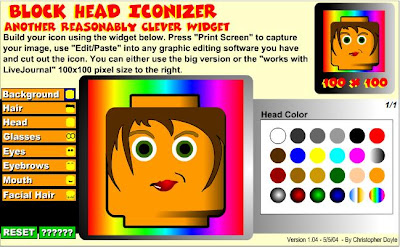
Bloque de Lego
Some usuful tools you may need:
  • Recortes. If you have no option to download your avar, take a screenshot. "Recortes" es a tool you will find only in Windows. Choose a rectagular shape, select your avatar and save it.

Sunday, February 12, 2017

Cloud computing


Do you want to take a look to a data center?
By the way... it is a 360º video, Do you know what does it mean?
  • Move your mouse on your PC or your finger on a tablet.
  • Use Google cardboard or any similar headset.

Saturday, January 28, 2017

Tuesday, January 17, 2017

Your pieces of advice published on twitter